
User guide
Workflows for cooperative staff, administrators, agents and employees. Includes registration, payments and activation.
Getting started
1. Introduction
This guide explains the current myKoop workflows. Screen names in Malay are included where useful so you can find the same controls in either language. The system reference tables preserve internal codes and labels for comparison with your screen.
By default, one staff member records a financial transaction and another approves it. Holding both roles does not normally allow you to approve your own work. Small cooperative mode permits specified transactions within a board-approved limit; membership committee decisions, payroll, claims and year-end closing still require another person. See Administration for the exception.
- Maker: records applications, payments, payroll deductions, vouchers, general receipts and journals.
- Checker: reviews financial records within the administrator's authority limit.
- Membership committee: decides membership applications and membership changes.
- Credit committee: decides financing applications.
- General manager: approves the relevant financial records without the checker's amount limit and handles write-offs and year-end decisions.
- Administrator: manages staff access, settings, accounts, products and opening data.
Posted records are retained. Use the appropriate reversal or correction workflow instead of deleting a posted transaction. myKoop subscription payments have their own online-payment and manual-transfer verification flow; they are separate from payments collected from cooperative members.
2. Sign-in and task inbox
All users sign in with an email code; there is no password. Open Log in on the website or visit /admin. Members can also use their cooperative's short login link.
- Enter your email or member number. A member number entered on the general login page also needs the cooperative code.
- Request a code, then enter the 6–8 digit code from your email within 10 minutes.
- After verification, the system opens your permitted workspace. Use the workspace switcher if your account has several existing roles or cooperatives.
For a member whose contact details have been verified by the cooperative, the first successful login activates their portal automatically. The code-request response is deliberately the same for recognised and unrecognised accounts. If no email arrives, check spam and contact your administrator. Requests are rate-limited.
Home and modules
Staff arrive at Home (Home). Choose a module card, then use its sidebar. Cards and pages follow your assigned permissions. Multiple roles combine your existing access; the workspace switcher does not grant new permissions. Use Home or ← Home to return to the cards. Direct links and browser navigation restore the matching module.
| Module | Main pages |
|---|---|
| Membership | Applications, Members, Board and committees, Member complaints |
| Shares and fees | Payments, Payroll deductions, Dividends |
| Sales | Summary, Customers, Items, Quotations, Invoices, Payments and receipts, Reports, Settings |
| Finance | General journals, Vouchers and general receipts, Bank reconciliation, Daily review |
| Financing | Applications and accounts, Portfolio and arrears, Late charges, Doubtful debts, Products |
| Assets | Custody and operations, Asset register, Monthly depreciation, Categories and settings |
| Human resources | Employees, Leave, Attendance, Payroll, Claims, Performance and training, Departments and sections |
| Administration | Staff access, Opening data, Year end, Subscription, Settings |
Language and task inbox
Use EN / BM in the application header. Your preference is saved in your browser and does not change other users' screens. Server errors may retain their original Malay details beneath an English heading. This guide has BM and EN pages; PDFs retain their template language.
The task inbox (Task inbox) is available across staff modules. Open a task to review the record and permitted decision actions. Normally your own records are excluded; eligible records in small cooperative mode may appear within the approved limit.
Help and demo
Use Help / Bantuan to submit a ticket with a category, priority, short title and description. Include what you tried, what happened and when. Avoid identity-card or bank-account numbers. The system attaches page, browser and recent-error context. Report this problem on an error opens a prefilled ticket. Replies appear in the ticket and by email; replying to a resolved ticket reopens it. Cooperative staff share their cooperative's tickets. Help remains available during a subscription lock. Members contact their cooperative directly.
/demo/ offers role-based dummy workspaces. Demo members enter the member portal. Do not enter real member details in a dummy account.
Members
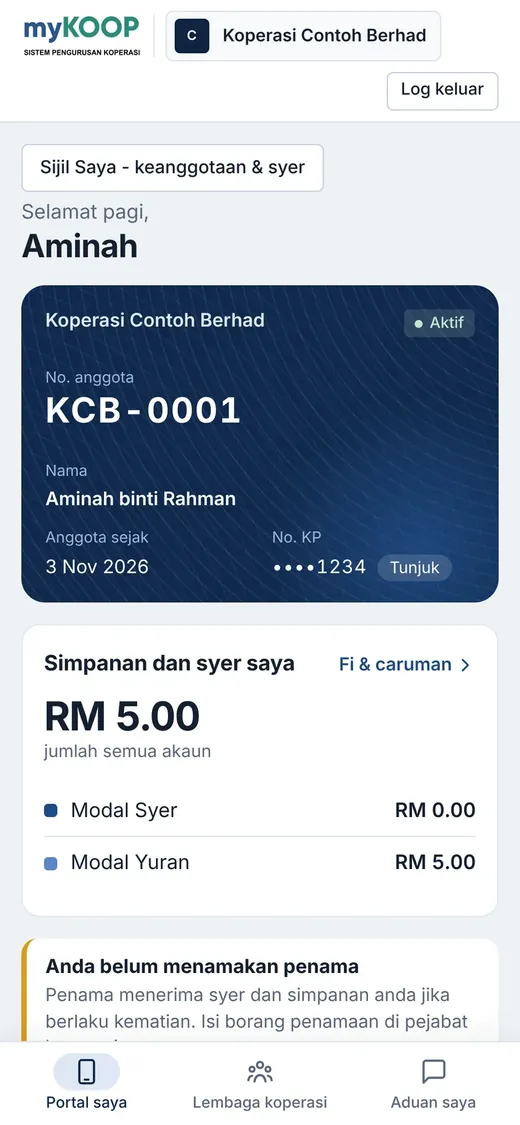
3. Members
Open Membership → Members or Applications. New members require an application recorded or reviewed by staff, followed by a decision from another membership committee user. Payment can be recorded after membership approval.
Applications and existing members
Add member has five steps: Identity, Contacts/address/employment, Membership/shares requested, Nominees, and Review. Record the original-form reference and identity number before submission. Complete required identity, citizenship, contact, address and income fields. Check values inferred from the identity number against the source form. Select an employer and unit, or enter another employer where supported.
- Save an incomplete draft and resume it under Applications → My drafts. Only its recorder can edit it.
- Submit for committee review. Submission creates neither a payment nor portal access. The recorder cannot decide the same application.
- Requested shares describe an intention; they do not create a share balance or receipt.
- Nominees are optional. When entered, allocations must total 100% and require their own confirmation after membership approval.
- Verify contacts through the contact/portal controls. Do not invent email addresses or passwords.
For Record existing member, preserve the original member number, joining date and approval reference, and choose the start date for new recurring charges. Import old balances through Opening data. Do not record historical balances as newly received money. One-time joining charges are not automatically charged again.
Online applications and committee meetings
The administrator opens member registration in Settings. The public form returns a reference number; it does not create an active member or payment. Staff open Applications → Online applications, take an application into their own draft, verify it against evidence, assign unit/employer details and submit it for committee review. Duplicate/open-application indicators help review. Rejection requires a reason; applicants are not automatically notified by this member-application workflow.
Applications can be decided individually or through Membership committee meetings. Create a meeting, select the agenda and save it. An application can belong to only one open meeting. Authorised users can print confidential meeting papers with an audited access reason; these contain full identity numbers. Another committee user records all decisions together on or after the meeting date. If one decision fails, none are saved. Approved new members use the meeting date; historical members retain their original joining details. Completed meetings cannot be edited. Cancelling an undecided meeting releases its agenda.
Search, profile and changes
Search by name or member number, with status, unit and joining-date filters. Date ranges include both endpoints; quick dates use Malaysia time. Results have 50 records per page. Open View profile or click the name/number. The profile separates current details and the original form from Payments and receipts. A member statement is a transaction report, not the personal profile.
Edit details submits a change for another authorised officer to confirm. Contacts use their separate contact/portal controls. Bank details are retained by default: explicitly choose replacement or clearing when needed. Full account numbers are not loaded into the edit form or displayed in audit history. Unrecorded details show a dash; incomplete-profile indicators identify missing fields without certifying eligibility.
Identity numbers are masked. Viewing a full identity number requires a reason and is audited. Resignation, death or termination follows the membership decision and financial-return workflow; active financing prevents exit. Redeemable shares are returned through a voucher according to settings; other balances follow the configured forfeiture rules.
Board, complaints and portal
Board and committees shows current organisational appointments. Administrators/general managers record appointments, end dates and AGM election outcomes with references. Board and committee posts require active members; management posts can include non-members. Appointment records do not grant system permissions. Those remain under Staff access.
Staff view member complaints under Membership or from the member profile. Members submit and reply through My complaints in their portal. Portal access is limited to the member's own balances, transactions, financing and certificates.
Membership and share certificates
Members open My certificates from their membership card in the portal.
Open Member profile → Certificates. Administrators configure certificate text and two officers' names/titles. The cooperative profile logo is used unless a certificate-specific PNG/JPEG logo is supplied (up to 2 MB).
Authorised staff issue membership certificates for active members. Share certificates require a positive posted share balance and authorised administrator/general-manager action. Enter the cooperative approval reference. Certificates use the certificate numbering series and capture issue-time details, template and certified amount. They contain only the last four identity-number digits.
PDFs are generated on request rather than permanently stored. Downloading again does not issue another certificate. Replacement requires an explicit replacement action and reason/reference; the original remains marked as replaced. Subsequent balance, logo or officer changes do not rewrite issued certificates. Leaving membership or death cancels valid certificates; suspension is shown as inactive in the PDF. Printed officer names are not cryptographic digital signatures.
Cooperative entities as members
Where the platform administrator has selected cooperative membership, forms use cooperative name and registration number. Staff record the cooperative, contact officer, document references and signed declaration, then submit for another committee user's decision. Existing-member records retain their historical number/date; old balances still use Opening data.
Public applications and grouped committee meetings for cooperative entities are not available. Individual-member financing, nominees, payroll deductions and exit/dissolution workflows are not enabled for cooperative entities. A contact officer receives no automatic access: an administrator verifies authority and appoints a representative. Representatives use email OTP and see only the permitted membership portal, without staff or payment-recording access. Ending their authority ends that membership access.
Money and ledger
4. Share and fee payments
Open Shares and fees → Payments, or record a payment from a member profile.
- The maker selects the member, instrument, amount, channel and value date. Bank transfers require a bank reference that cannot be reused.
- Another checker reviews the money/evidence and approves within their authority. Approval posts the journal and issues an RC receipt.
- Download the receipt PDF from the payment or the member's own portal.
A pending payment can be cancelled by its maker or rejected by a checker with a reason. Posted records are retained: request a reversal and obtain another administrator/general manager's approval. The reversing journal uses today's date and the original receipt is marked reversed. Small cooperative mode allows specifically eligible transactions within its approved limit.
Scheduled charges and contributions
Open Member fees, contributions and arrears, or Fees and contributions from the profile. Charges use the cooperative's configured rates, effective dates and member category. A displayed fee or charge is not proof of money received.
Record money actually received by cash, transfer or QR. QR is recorded as bank money while retaining its collection method; a transaction reference is required. Verify the real bank account first. This member-charge page does not automatically verify a bank transaction or provide a new receipt-upload flow.
Fees/funds use general receipts; share capital and member contributions use member payments. Official receipts and posting follow approval. Partial collections are supported; pending amounts prevent overcollection. Existing share payments and payroll deductions are matched in charge order from the first charge date. A reversal reopens the relevant balance. Charges are collection claims rather than automatically posted receivables.
Administrators may cancel unpaid charges without paid or pending collections, with a reason. Cancelling a charge does not refund money. Members see their own fees read-only. Fees do not add share capital or create a share certificate.
Search and certificates
Filter Payments by member name/number, receipt, bank reference, status, channel and value-date range. Both dates are included. Advanced filters are retained on reload and results have 50 records per page. Joint collections show member allocations; the overall receipt must not be treated as a single member's personal receipt.
Issue a share certificate separately from Member profile → Certificates, based on positive posted share capital. Pending payments do not increase its amount. A certificate does not post money. Later collections do not rewrite an old certificate; use replacement when a new certified amount is required.
5. Payroll deductions and employer remittances
Use Shares and fees → Payroll deductions for grouped member collections from an employer. Prepare the batch using the available template and review the member allocations before submission. Another authorised checker/general manager approves it before the member balances and ledger are updated.
Use the batch's receipt and allocation details to trace an overall employer remittance to individual members. Do not also enter the same remittance as separate new collections. Correct a posted batch through its supported reversal workflow, retaining the original records and reason.
Historical balances belong in Opening data rather than a new payroll collection. Check that member numbers, instruments, bank channel, amount and date match the actual remittance before approval.
A batch can include shares, contributions and financing instalments together. The employer CSV uses no_anggota, kod_instrumen and amaun. For financing, use PINJAMAN:<financing number> as the instrument code. Correct validation errors before submitting. Approval issues one RC receipt for the share/contribution portion and an RP receipt for each financing account. Download the posted employer deduction statement PDF to reconcile its total and receipt references. A bank-statement line can match the entire batch. Reversing a batch reverses all its components together after the required approval.
6. Vouchers, general receipts and journals
Use Finance → Vouchers and general receipts or General journals. Choose the correct workflow for cooperative expenses, other receipts and accounting adjustments rather than entering them as member share payments.
The maker prepares the record, amount, date, accounts, bank/cash channel and supporting reference, then submits it. Another authorised checker/general manager reviews and approves it within their authority. Posting produces the corresponding ledger entries and document number. Eligible small-cooperative transactions follow the separately configured self-approval limit.
Use general receipts for non-share income/fund collections, vouchers for outgoing payments and journals for accounting adjustments. Check that journal debits and credits balance and that the period is open. A posted record is retained; correct it using its supported reversal/correction route with a reason rather than deleting it. Review the Daily review and ledger reports after posting.
Use a voucher/general receipt for actual money paid to or received from an outside party; use a general journal for non-cash adjustments. The bank/cash line is generated by the system. General journals cannot touch member control accounts for shares/contributions. Rejected or cancelled drafts receive no official document number.
7. Bank, assets, dividends and year end
Choose Bank reconciliation under Finance, Fixed assets under Assets, Dividends under Shares and fees, or Year end under Administration.
Bank reconciliation and periods
Create the monthly statement with its opening and closing bank balances. Upload the statement CSV, review automatic matches and match remaining items. Record bank-only items such as fees through a voucher or journal, then submit for another authorised user's verification.
After verification, new bank postings cannot be dated on or before that statement's closing date. Use a current permitted date for late entries. Transactions require an open accounting period. A period closed by the general manager cannot be reopened; finish the month's approvals first.
Asset operations and custody
Search the asset register by number, name, location or custodian. Record serial number, supplier and warranty separately.
- Open an asset and create an initial handover, transfer, loan or return with destination, custodian and reason. A loan needs a return date.
- An authorised checker within the asset-cost limit, or general manager, approves it. Location/custodian changes take effect only after approval. Eligible small-cooperative exceptions use their configured limit.
- Return an active loan before creating another. Resolve active loans and pending movements before disposal/cancellation.
- Add service, damage, loss, recovery or HTTPS document-link records under Maintenance, incidents and documents. Damaged/lost assets require a recovery record before handover or loan.
Logs remain in the audit trail; add a correction record. Service costs in the operational log do not post an expense: use a voucher/journal with the same reference for actual accounting.
Receive assets from approved purchases links the register to a purchase voucher/journal already debited to the category's asset-cost account. Allocate cost, receipt date and goods-received/DO reference. Several assets can use one purchase up to its available debit. Receiving does not post the cost twice. Use ordinary registration for legacy/opening assets and avoid duplicate registration. Original-file uploads and QR labels are outside this workflow.
Monthly depreciation and disposal require the relevant financial approval. Asset categories and account settings are managed in the Assets sidebar.
Dividends and closing
The administrator calculates dividends on eligible member shares using the approved meeting rate; the general manager approves. Cash/bank dividend payments are recorded by a maker and checked by a checker. Year-end closing calculates net profit and statutory allocations and posts closing journals after the general manager approves. Keep another person for year-end approval even in small cooperative mode.
8. Reports
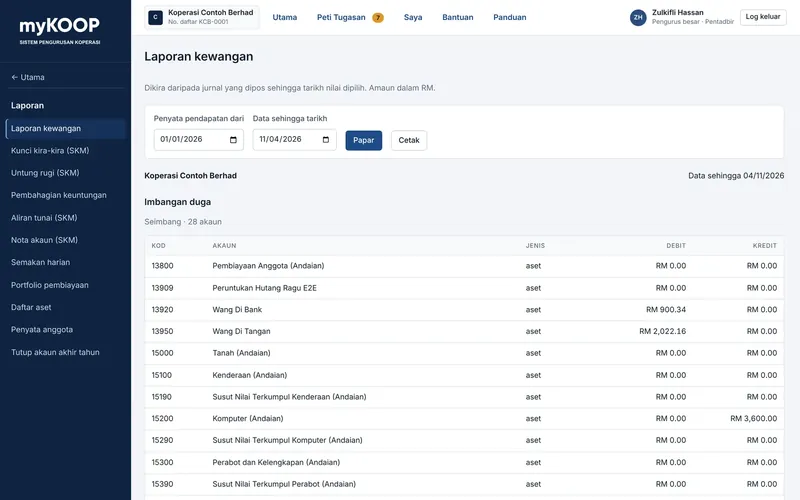
Open Reports from Home. Available reports follow your role and include financial reports and SKM statements, Daily review, financing portfolio, asset register, member statements and year-end closing.
Choose the required period or date filters, review the totals and use the available PDF/CSV export. Distinguish posted transactions from pending submissions: an unapproved payment is not a posted receipt or final balance. Closed-period and reconciliation controls still apply to corrections discovered during review.
Member statements show financial activity; use Member profile to view or edit personal details. Sales has a separate Reports page for date-filtered invoices, credits, collections, reversals and refunds. Its Summary shows the current-month overview without those filters or exports.
Use Daily review to investigate outstanding work and recorded self-approvals in small cooperative mode. Reconcile exported figures against the same filters and period used on screen.
Daily review displays up to 500 receipts, while its CSV includes all receipts for the selected date. Trial balance debits and credits should agree. Member subledger differences and financing principal/ledger differences should be zero; report a discrepancy to the administrator. SKM statement type is selected through the Reports sidebar, with date controls and Print/CSV export.
Sales
9. Sales
Sales manages customers, quotations, invoices, collections and receipts. Customers may be members or external parties. These documents are not LHDN e-Invoices.
Makers/administrators manage customers/items, prepare documents and record receipts. Checkers approve within their authority; general managers approve applicable records prepared by others. Members and agents have no default Sales access. Normal maker/checker separation applies, with the specifically permitted small-cooperative exceptions.
Setup and first document
- Check the cooperative's official name, registration number, address and logo in Profile.
- Under Sales → Settings, explicitly select the trade-receivables asset account and sales-income account. These are different from bank or member-financing accounts. Ask your finance officer to create suitable accounts if necessary.
- Check bank/cash channels and an open accounting period. Configure separate quotation, invoice, receipt, credit-note and refund numbering series.
- Optionally choose a board position as document signatory. Its holder's name/title is captured when issued; later appointments do not rewrite old documents.
- Add a customer and optional item. Create a quotation or invoice, save a draft, review the PDF and submit for approval.
Customers store billing/contact details and payment terms. Check duplicate-name warnings and deactivate unused customers to retain history. Items offer suggested descriptions/prices. Quantities support three decimal places; line discounts are RM amounts rather than percentages.
Quotations and invoices
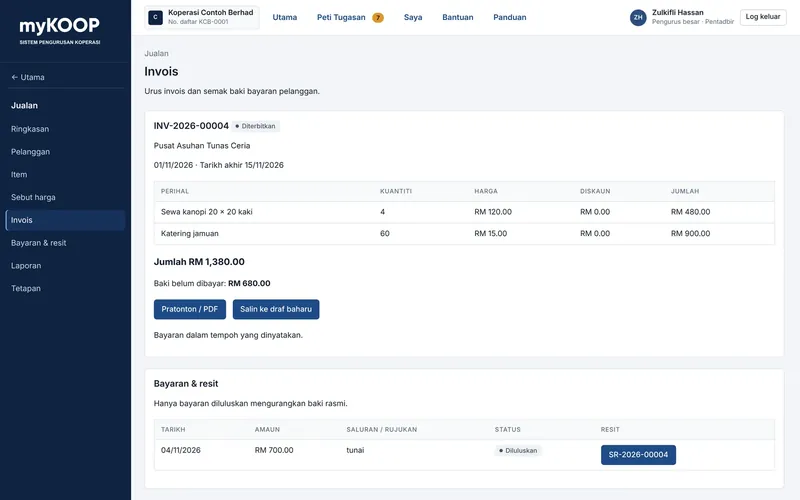
Choose the customer, date, validity/due date, items, notes and terms. A draft has no official number. Another authorised user reviews and publishes it, assigning the number. A published invoice posts receivables and income; a quotation does not.
After acceptance, record the quotation's acceptance reference to create an invoice draft. Repeating the same conversion opens the existing invoice. Use Copy to new draft for a separate new document. Issued documents preserve customer/cooperative and price details captured at issue.
Collections, receipts and corrections
Record money already received against an invoice with date, amount and channel. Bank transfers need a reference; partial payment is allowed up to the available balance. Pending payments do not reduce the official balance. Approval reduces receivables and issues a receipt without recording income twice. This form does not move money from the customer's bank or automatically email the document.
Use Adjustments and corrections with a reason and the required approval:
| Action | Effect |
|---|---|
| Credit note | Reduces sales/receivables; an overpayment becomes customer credit |
| Refund | Records money returned up to the available customer credit |
| Reverse payment | Keeps the original marked receipt and restores invoice balance |
| Cancel invoice | Reverses an invoice without active payment/adjustments; otherwise use an appropriate credit note |
Old documents and used numbers remain. Post corrections in an open period.
PDFs and reports
Preview and download share the A4 layout, draft/cancelled/reversed status marks, continued tables and page numbers. PDFs are generated on demand, not permanently stored.
Summary shows this month's net sales/receipts, customer balances and overdue balances with quick actions; it has no date filter/export. Reports has date filters and separates invoices, credits, cancellations, receipts, reversals and refunds. Current balances/ageing cover active invoices; customer credit is separate. Export balance CSVs for further review.
Financing
10. Member financing
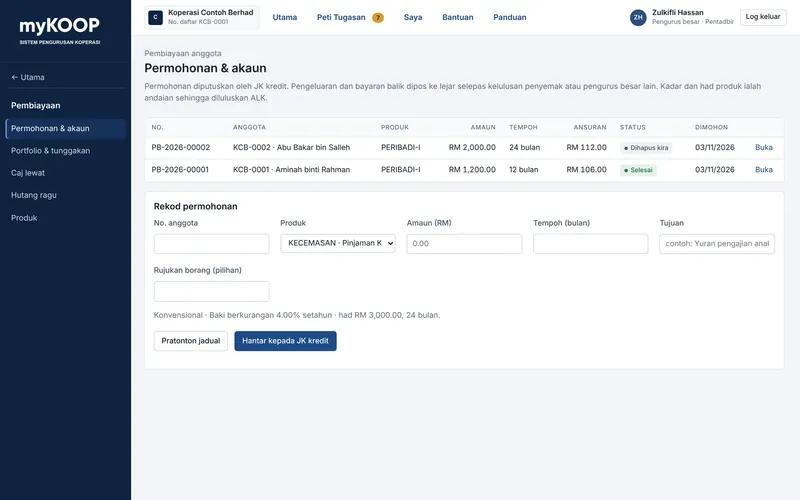
Open the Financing module and choose Applications and accounts, Portfolio and arrears, Late charges, Doubtful debts or Products from its sidebar.
| Stage | Recorded by | Decided by | Result |
|---|---|---|---|
| Application | Maker/administrator | Credit committee | Approval or rejection |
| Disbursement | Maker | Checker within limit/general manager | Journal and instalment schedule |
| Repayment | Maker | Checker/general manager | RP receipt |
| Early settlement | Maker | Checker/general manager | RP receipt, rebate and settled status |
| Monthly late charges | Maker/administrator | Checker/general manager | Charge added to balance |
| Doubtful-debt provision | Maker/administrator | Checker/general manager | Provision journal |
| Write-off | Maker/checker/administrator | General manager | Written-off status |
Repayments settle due instalments first, then late charges, then future instalments. Profit is settled before principal within each instalment. Early-settlement quotations include principal, due profit and late charges, with future instalment profit rebated; the amount is recalculated at approval.
For late charges, the administrator configures the product rate. After month end, calculate that month's charge: month-end arrears × rate ÷ 12. It affects the balance after approval. Doubtful-debt provisions use the configured overdue-month percentages and post an adjustment after approval.
Write-offs use existing provision first and charge the remainder to expenses. Subsequent recoveries are recorded as bad-debt recovery with a general receipt. Import legacy financing balances through Opening data using its financing template.
Default maker/checker controls apply, with only the specifically permitted small-cooperative exceptions. Financing for cooperative entities is not enabled simply by choosing cooperative membership; product, authority and settlement workflows need separate support.
Human resources
11. Human resources
HR is optional. Enable it under Settings → Profile → Optional modules, then appoint an HR administrator through Staff access. Administrators and general managers can also manage HR; an HR-only user sees only the HR workspace.
Employees and structure
Create departments and sections, then employee records with identity, role, grade, appointment type/date, supervisor, statutory references and payroll bank details. Employee numbers can be generated when blank. If the person already exists as a member, myKoop reuses the person record; personal changes follow the member profile. Bank details are masked. Profiles also hold family/emergency contacts, academic qualifications, experience and professional registration.
Ending employment requires a date and reason and retains a locked history. Reassign reporting employees first. Departments/sections with active employees cannot be deactivated. Contract-expiry warnings appear in the employee list.
Leave
Configure the state, weekly rest days, leave types/balances and optional supervisor-then-HR approval. Review the supplied defaults and maintain state/substitute holidays. HR grants employee email login from the employee profile.
Employees apply through My page / Saya with a day/balance preview. Supervisors decide under My team / Pasukan saya; HR can act where permitted and cancel approved leave with a reason, returning the balance. HR can record applications on behalf of employees and adjust balances. Leave pages include a calendar and employee balances.
Attendance
Configure working hours, lateness tolerance, overtime minimum and recorder IDs. Import .xlsx or CSV exports, review guessed columns and map unknown IDs before submission. Convert old .xls files to .xlsx first. Imports support individual clock events or daily in/out rows.
The monthly summary shows attendance, lateness, early departure, single clock events, absence, leave and overtime, with CSV export. Open daily details to correct times or excuse a day with a reason. Reimporting does not overwrite those corrections. Employees see their own current/previous month; supervisors see their team.
Payroll
- Configure salary expenses, employer contributions, statutory liabilities, deductions and bank accounts. Review assumption-labelled statutory settings and effective dates.
- Record base salary, contribution categories, overtime eligibility, monthly PCB/CP38 and fixed allowances/deductions. Member employees may have share/contribution deductions.
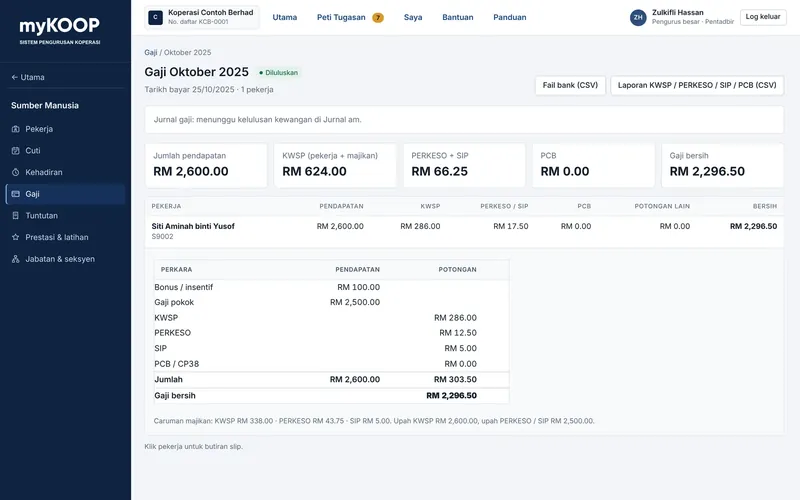
- Prepare the payroll month and pay date. Review prorated salary, allowances, unpaid leave, attendance overtime, verified claims and tax. Changes to statutory amounts require reasons.
- HR submits. Another administrator/general manager approves. The payroll journal still needs financial approval through General journals. Where applicable, finance creates the cooperative-deduction batch to credit members.
- After approval, download bank/statutory CSV files. Employees view/print payslips under My page; the annual EA summary provides yearly totals.
Claims, performance and training
Employees submit claims under My page with type, date, amount and receipt number. Supervisors endorse through My team; HR verifies and chooses payroll or voucher payment. Configure type limits separately.
For annual reviews, HR opens the year and sets criteria/weights. Employees enter self-assessments and KPIs; supervisors provide final scores, or HR where no supervisor exists. HR records training dates/hours/cost and disciplinary action. Disciplinary records are restricted to HR and the employee concerned.
The inbox includes payroll approvals, claims, appraisals and contract/probation reminders. Employees use My page for leave, payslips, claims, attendance and appraisal; supervisors also use My team. Small cooperative mode does not remove the separate-person requirements for payroll and claims.
Administration
12. Administration
Open Administration from Home for Staff access, Opening data, Year end, Subscription and Settings. Newly activated cooperatives receive a starter template with accounting assumptions; review the chart, share/fee instruments, bank/cash channels, asset categories and accounting period before entering real bookkeeping data. Complete empty rates and confirm assumption-labelled settings before switching bookkeeping to real data. Changes after setup require reasons and are audited.
Staff access, opening data and settings
Invite staff by email, assign roles with start dates and set checker approval limits. End access when staff leave. Organisational board appointments do not automatically grant these roles.
Review the cooperative profile, account mappings, instruments, financing products and accounting periods. Import historical members, opening balances and financing balances using the supplied CSV templates; another administrator/general manager approves and posts an import only once. Do not enter historical balances as new receipts.
Configure optional area/region/branch hierarchies and employer lists. An active child unit prevents parent deactivation. Use the same unit/employer lists on member applications and profiles.
Cooperative setup
From Home, choose Start or resume setup. The eight steps cover membership type, profile, fees and shares, members, board appointments, staff access, financial settings and final review. Review the prefilled profile and edit it if needed. The public cooperative page is optional. Choose a collection type, enter the amount per member, frequency and start date, then select Save for review. Drafts stay in this browser. Choose Complete plan details to review the account, categories and approval before activation. If you are still gathering details, choose Set up later and continue.
Membership decisions still follow the existing approval process. Board appointments in setup apply to individual membership. The members step completes once the cooperative has an active member. Final review shows any steps that still need attention. Choose Exit setup to resume in the same browser, under the same account and cooperative. Records saved through a form are stored in myKoop.
Small cooperative mode
For one or two staff, Settings → Profile allows an administrator to enable small cooperative mode with an RM self-approval limit and board-decision reference. A user who already holds an appropriate approval role may approve eligible own records within this limit. Above the limit, another person is required; individual checker authority limits still apply.
Eligible workflows include specified payments, journals, vouchers, general receipts, sales documents/payments, payroll-deduction batches, reversals, nominees, member changes, bank reconciliation and asset records. Each self-approval is audited and listed in Daily review. Committee membership/exit/financing decisions, payroll, claims and year-end closing still require another person. Disable the mode when staffing permits normal separation.
Fees and numbering
Fees, contributions and shares contains configurable plans for joining/process/annual/lifetime fees, welfare funds, shares and contributions. No prices activate automatically. Choose amount, effective date, required/optional category, account/instrument, instructions, refund policy and approval reference. Charges retain the version that created them. Disabling a plan does not remove arrears. Share/contribution plans use existing instruments; ordinary fees use income/fund accounts.
The daily cycle creates current mandatory recurring charges for active members. Generate missed periods or optional charges explicitly. The initial month/year is charged in full without proration; historic members are not automatically charged an old one-time joining fee again. Repeating generation does not duplicate the same charge.
Numbering configures prefix, minimum digits, start, optional date position/format, separator and reset period. Previewing does not reserve a number. Old numbers remain unchanged and used numbers are skipped. Month/year resets require the corresponding date component. Each cooperative and document type has a separate series. Certificates and Sales documents have supported issue workflows; platform subscription invoices use the platform series.
Cooperative public page and member registration
Under Settings → Profile → Public cooperative page, check the permanent cooperative code, official name/registration number, public description and contact details. An optional PNG/JPEG logo can be up to 2 MB. Explicitly publish with a change reason. Only the entered public contact details appear; member information is not copied.
The short page, for example /harmoni, links to member login and to member registration when separately enabled. Publishing the page does not open member applications. Use the separate registration control to open/close applications with a reason. Submitted applications remain available for review after closure. General staff login remains /login or /admin.
Subscription and access
Pay by the invoice due date. A due date on the 10th locks operational access at 00:00 on the 11th, Malaysia time, without a grace period. Administrators/general managers can still view invoices and pay under Subscription. Members retain read-only access to their own balances, receipts and certificates. Verified settlement of all overdue invoices restores operations; administrative suspension is separate and may restrict the portal. Records are retained.
Online subscription payments use server verification through Billplz when enabled; bank transfers require review. Do not pay again while an existing payment is being reconciled. Automatic recurring payment is not currently available.
Registering a cooperative and paying upfront
Start at /signup/. Choose BM or EN, verify the designated officer's email and complete the cooperative details. Select a required member range from the published pricing table; the payment summary updates immediately.
| Declared members | Monthly fee | Setup fee | Initial total |
|---|---|---|---|
| Up to 300 | RM100 | RM200 once | RM300 |
| 301–1,000 | RM150 | RM200 once | RM350 |
| 1,001–3,000 | RM200 | RM200 once | RM400 |
| 3,001–5,000 | RM250 | RM200 once | RM450 |
| 5,001–10,000 | RM300 | RM200 once | RM500 |
| Above 10,000 | Custom quote | Refer to quote | Refer to quote |
This selection declares a plan range; it is not the number of member records already imported.
- Pay Online (FPX): verified payment activates the account automatically and sends an activation email with the login link. No extra administrator approval is required.
- Manual Bank Transfer: follow the displayed bank instructions and upload a PDF/JPG/PNG receipt up to 512 KB. The account waits for payment verification. A platform administrator checks actual bank receipt of the full amount and records the transaction reference. Accepting the proof activates the account and sends the email. Uploading proof alone does not activate access; rejected proof can be resubmitted.
The subscription begins on activation. Status updates automatically. If activation is delayed after successful payment, the payment remains recorded for recovery/support; do not pay twice.
Agents and direct registrations
Agents use Register a cooperative / Daftarkan koperasi in their dashboard to prepare details and share a link with the designated officer. The officer verifies that email, confirms details and pays. Prepared links last 30 days; public referral attribution carries to signup for 90 days. Agents can track verification, payment, receipt review and activation progress but cannot mark money received or activate the account.
Without agent attribution, no commission is created: Neugens keeps all setup and subscription revenue before processing fees. For an eligible attributed agent, RM100 of the RM200 setup fee is recorded as agent commission; monthly commission follows the existing applicable plan. Collection and later commission payout are separate; the gateway does not automatically send half to an agent.
Platform administration and free access
At Platform → Registration in /admin, review applications, payments and activation. Unpaid applications receive a reminder email after 3 days and close automatically after 7 days without payment or transfer proof. To close one earlier (for example a test or duplicate), open Close registration on it and enter a reason; the applicant is not emailed. Closing frees the registration number and short URL. Applications with transfer proof under review or a verified payment cannot be closed. Applicants can switch between FPX and bank transfer, or cancel, before paying or sending proof. A registration number already registered in myKoop stops the form with a request to contact support; a taken short URL only asks for a different one. A late payment through an old FPX link is still recorded: the application reopens and activates, or is flagged for review if its registration number or URL has been taken. Verified online payments activate automatically. Manual proof must be checked against the bank before acceptance. A paid application with delayed activation needs recovery/status review rather than another charge. Refunds are handled manually.
Free access requires a separate platform-administrator decision and reason. The applicant saves their details and stops before starting checkout or sending transfer proof. An outstanding online checkout must be resolved before a fee waiver. Free activation creates no paid invoices, receipts or commission. Moving an agreed free account to paid service requires a separate recorded decision; future billing starts on the next cycle, without retroactive charges or a setup fee. A fee waiver does not itself switch bookkeeping out of setup mode.
Reference
13. Quick reference
| Task | Where to start |
|---|---|
| Register your cooperative | Website → Sign up; verify officer email, select plan and pay |
| Verify manual registration transfer | Platform → Registration; check the bank before accepting proof |
| Create an agent-assisted registration | Agent dashboard → Register a cooperative |
| Record a member | Membership → Members → Add member |
| Review an application | Membership → Applications or committee meeting |
| View/edit member details | Member profile; contacts use their separate controls |
| Collect shares or fees | Shares and fees → Payments, or member fees/contributions |
| Issue a certificate | Member profile → Certificates |
| Prepare a quotation/invoice | Sales; configure accounts first |
| Record an operating expense | Finance → Vouchers |
| Import historical balances | Administration → Opening data |
| Pay myKoop subscription | Administration → Subscription |
| Manage staff/roles | Administration → Staff access |
| Report a problem | Header → Help |
Check the member profile for identity/contact details and the member statement for financial activity. Pending submissions do not count as posted money. Never record the same collection twice while waiting for verification.
14. System reference
These tables are generated from the current application's menus, roles, tasks and status definitions. Internal codes are preserved. Original screen labels may appear where no English dictionary entry exists; they identify the same controls in BM.
Menus by role
| Group | Menu | Administrator | General manager | Membership committee | Credit committee | Reviewer | Maker | HR administrator |
|---|---|---|---|---|---|---|---|---|
| Global / header | Home | ✓ | ✓ | ✓ | ✓ | ✓ | ✓ | ✓ |
| Global / header | Task inbox | ✓ | ✓ | ✓ | ✓ | ✓ | ✓ | ✓ |
| Membership | Applications | ✓ | ✓ | ✓ | ✓ | ✓ | ✓ | – |
| Membership | Members | ✓ | ✓ | ✓ | ✓ | ✓ | ✓ | – |
| Membership | Board & committees | ✓ | ✓ | ✓ | ✓ | ✓ | ✓ | – |
| Membership | Member complaints | ✓ | ✓ | ✓ | – | – | ✓ | – |
| Shares & Fees | Payments | ✓ | ✓ | ✓ | ✓ | ✓ | ✓ | – |
| Shares & Fees | Salary deductions | ✓ | ✓ | ✓ | ✓ | ✓ | ✓ | – |
| Shares & Fees | Dividends | ✓ | ✓ | – | – | ✓ | ✓ | – |
| Finance | General journal | ✓ | ✓ | – | – | ✓ | ✓ | – |
| Finance | Vouchers & general receipts | ✓ | ✓ | – | – | ✓ | ✓ | – |
| Sales | Sales | ✓ | ✓ | – | – | ✓ | ✓ | – |
| Finance | Bank reconciliation | ✓ | ✓ | – | – | ✓ | ✓ | – |
| Financing | Financing | ✓ | ✓ | – | ✓ | ✓ | ✓ | – |
| Assets | Fixed assets | ✓ | ✓ | – | – | ✓ | ✓ | – |
| Human Resources | Employees | ✓ | ✓ | – | – | – | – | ✓ |
| Human Resources | Leave | ✓ | ✓ | – | – | – | – | ✓ |
| Human Resources | Attendance | ✓ | ✓ | – | – | – | – | ✓ |
| Human Resources | Payroll | ✓ | ✓ | – | – | – | – | ✓ |
| Human Resources | Claims | ✓ | ✓ | – | – | – | – | ✓ |
| Human Resources | Performance & training | ✓ | ✓ | – | – | – | – | ✓ |
| Human Resources | Departments & sections | ✓ | ✓ | – | – | – | – | ✓ |
| Reports | Reports | ✓ | ✓ | ✓ | ✓ | ✓ | ✓ | – |
| Finance | Daily check | ✓ | ✓ | – | – | ✓ | – | – |
| Administration | Staff access | ✓ | ✓ | – | – | – | – | – |
| Administration | Opening data | ✓ | ✓ | – | – | – | – | – |
| Administration | Year end | ✓ | ✓ | – | – | – | – | – |
| Administration | Subscription | ✓ | ✓ | – | – | – | – | – |
| Administration | Settings | ✓ | ✓ | – | – | – | – | – |
| Human Resources | My leave | ✓ | ✓ | ✓ | ✓ | ✓ | ✓ | – |
| Human Resources | My team | ✓ | ✓ | ✓ | ✓ | ✓ | ✓ | – |
Staff with several roles see their combined permitted menus. Members in the portal only see: My portal and Cooperative board and My complaints.
Roles
| Role | Code | Description |
|---|---|---|
| Administrator | pentadbir | Manage staff access, settings, products and opening data |
| General manager | pengurus_besar | Approve without an amount limit; dividends, year end and write-offs |
| Membership committee | jk_keanggotaan | Decide member applications |
| Credit committee | jk_kredit | Decide financing applications |
| Reviewer | penyemak | Approve financial records within the authority limit |
| Maker | pembuat | Record applications, payments and financial documents |
| HR administrator | pentadbir_hr | Manage employees, departments and sections in Human Resources |
Inbox task types
The inbox supports 37 task types. Tasks follow role permissions and maker/checker rules, including configured small-cooperative exceptions.
- Decide cooperative-member applications
- Publish sales documents
- Review sales payments
- Review sales adjustments
- Decide member applications
- Review and approve payments
- Review identity for member portal access
- Review payroll-deduction batches
- Reply to member complaints
- Review and approve opening-data imports
- Confirm member nominees
- Decide payment reversals
- Decide membership-exit applications
- Record payments to exiting members
- Approve exiting-member vouchers
- Approve dividend distribution
- Record cash / bank dividend payment
- Approve dividend vouchers
- Approve year-end closing
- Approve general journals
- Approve late charges
- Approve doubtful-debt provisions
- Decide financing write-offs
- Approve monthly depreciation
- Approve asset disposal
- Verify bank reconciliation
- Decide financing applications
- Record financing disbursements
- Approve financing disbursements
- Approve financing repayments
- Decide financing-payment or batch reversals
- Decide leave applications
- Approve monthly payroll
- Decide employee claims
- Review employee performance
- Review employee contracts or probation
- Confirm member information or status changes
Status labels
| Screen label | Code |
|---|---|
| Upcoming | akan_datang |
| Active | aktif |
| Assumption | andaian |
| New | baharu |
| Withdrawal | berhenti |
| In progress | dalam_tindakan |
| Reversed | dibalikkan |
| Cancelled | dibatalkan |
| Open | dibuka |
| Replaced | diganti |
| Suspended | digantung |
| Written off | dihapus_kira |
| Approved | diluluskan |
| Disposed | dilupus |
| Posted | dipos |
| Confirmed | disahkan |
| Reversed | diterbalikkan |
| Rejected | ditolak |
| Closed | ditutup |
| Draft | draf |
| Deceased | meninggal |
| Awaiting payment approval | menunggu_bayaran |
| Awaiting decision | dihantar |
| Awaiting disbursement | menunggu_pengeluaran |
| Awaiting review | menunggu |
| Match | padan |
| Needs correction | ralat |
| Valid | sah |
| Done | selesai |
| End | tamat |
| Inactive | tidak_aktif |
Guide updates
The current instructions above describe the active workflows. Historical release notes in BM are retained in the BM guide.
| Date | Update |
|---|---|
| 7 November 2026 | English guide added with matching section links and BM/EN navigation. Conflicting legacy signup, certificate and HR instructions corrected. |
| 7 November 2026 | Signup uses the published member tiers, BM/EN, automatic activation after verified online payment, and activation after bank-transfer verification. Direct registrations create no agent commission. |
| 6 November 2026 | Agent-assisted application links and manual-transfer proof uploads added. |
No sections match your search.